What you need
- Arduino IDE already installed
- Three library files from this course:
| Library | Download | Version | Date added | Purpose |
|---|---|---|---|---|
| Barigadam_MotionSensor | Barigadam_MotionSensor.zip | 1.0.3 | 2026-09-24 | Reading and configuring the motion sensor |
| Barigadam_ColorSensor | Barigadam_ColorSensor.zip | 1.0.3 | 2026-09-24 | Reading and configuring color sensors |
| LittleRobot | LittleRobot.zip | 1.0.3 | 2026-09-23 | Motors, encoders, line following, and heading-control movement |
Downloading LittleRobot requires the access password. The other libraries can be downloaded without a password.
Step 1 — Download the libraries
- Download all three
.zipfiles from the table above. - Save them to a folder you can find later (for example Downloads).
- Do not unzip the files — Arduino IDE installs libraries directly from
.zip.
Step 2 — Install the libraries
-
Open Arduino IDE.
-
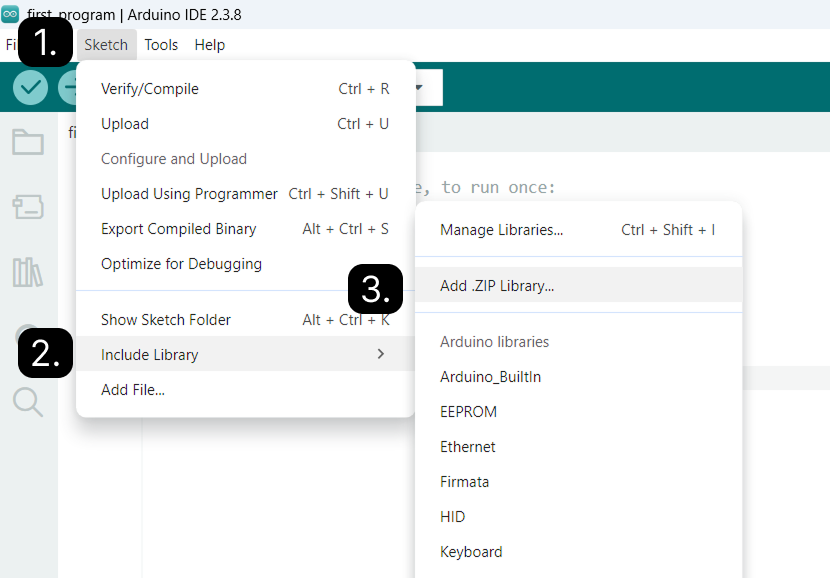
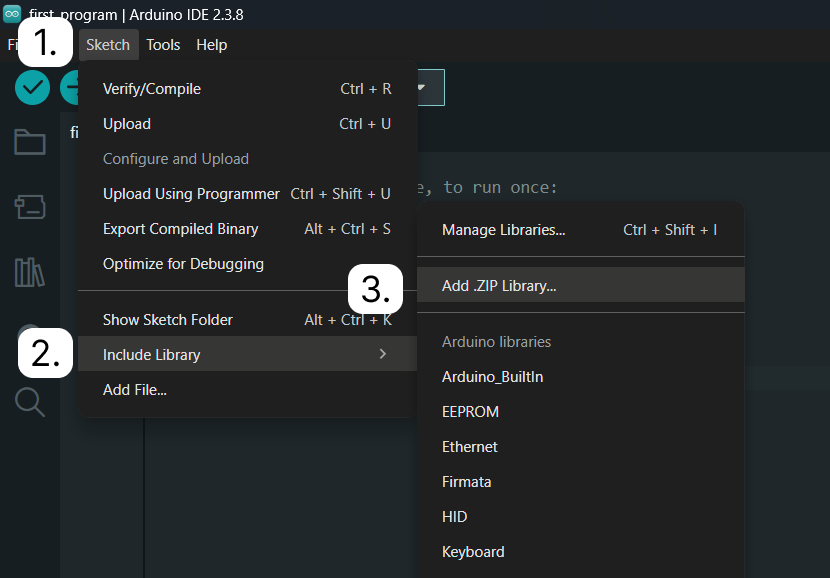
Go to Sketch → Include Library → Add .ZIP Library…
-
Install each library in this order. For every file, open Add .ZIP Library… again and select the next
.zip:Barigadam_MotionSensor.zipBarigadam_ColorSensor.zipLittleRobot.zip
-
Wait until the status bar confirms each library before moving to the next file.
LittleRobot depends only on Barigadam_MotionSensor — install that one first. Barigadam_ColorSensor is a separate library for color-sensor lessons and is not required for LittleRobot to compile.
Step 3 — Check that everything works
- Open File → Examples.
- Find Barigadam_MotionSensor, LittleRobot, and Barigadam_ColorSensor.
- Open Barigadam_MotionSensor → YawPitchRoll. Its first lines should contain
BarigadamMotionSensor sensor(0x60);. - Open LittleRobot → LightCalibration.
- Select Arduino Mega or Mega 2560 and click Verify for both examples. Both must compile without errors.
If examples appear and the code compiles, the libraries are installed correctly.
Common problems
| Problem | What to try |
|---|---|
| LittleRobot fails to compile | Install libraries in the correct order, starting with Barigadam_MotionSensor |
| Library not in Examples | Restart Arduino IDE and check Sketch → Include Library — all three libraries should be listed |
| Add .ZIP Library does nothing | Select the .zip file itself, not a folder extracted from it |
| Wrong board selected | Set Tools → Board to Arduino Mega or Mega 2560 (see Arduino IDE setup) |
More help: Troubleshooting